Editing cards
Editing cards
The deck editor is built around the card list. Everything else — title, folder, settings — tucks into the Settings flyout to keep the cards in focus.
Layout
Each card row shows:
- A numbered terracotta badge on the left (Card 1, Card 2, etc.)
- Prompt and answer side-by-side
- Explanation collapsed beneath, with an "Add explanation" toggle
When you focus a textarea inside a card, a terracotta left rail lights up along the side of that card and the whole card gets a subtle terracotta halo. That's how you know which card you're currently editing.
Reordering
Use the up/down chevrons on the right of each card header to move it. The reorder controls dim when not hovered so they don't clutter the page.
Removing
The trash icon on the right of a card header deletes it. You'll be prompted to confirm — there's no undo.
Adding more
An "Inscribe another card" pill sits at the bottom of the list. The + icon spins 90° on hover. The header + Add card button works too — same behaviour.
Bulk import
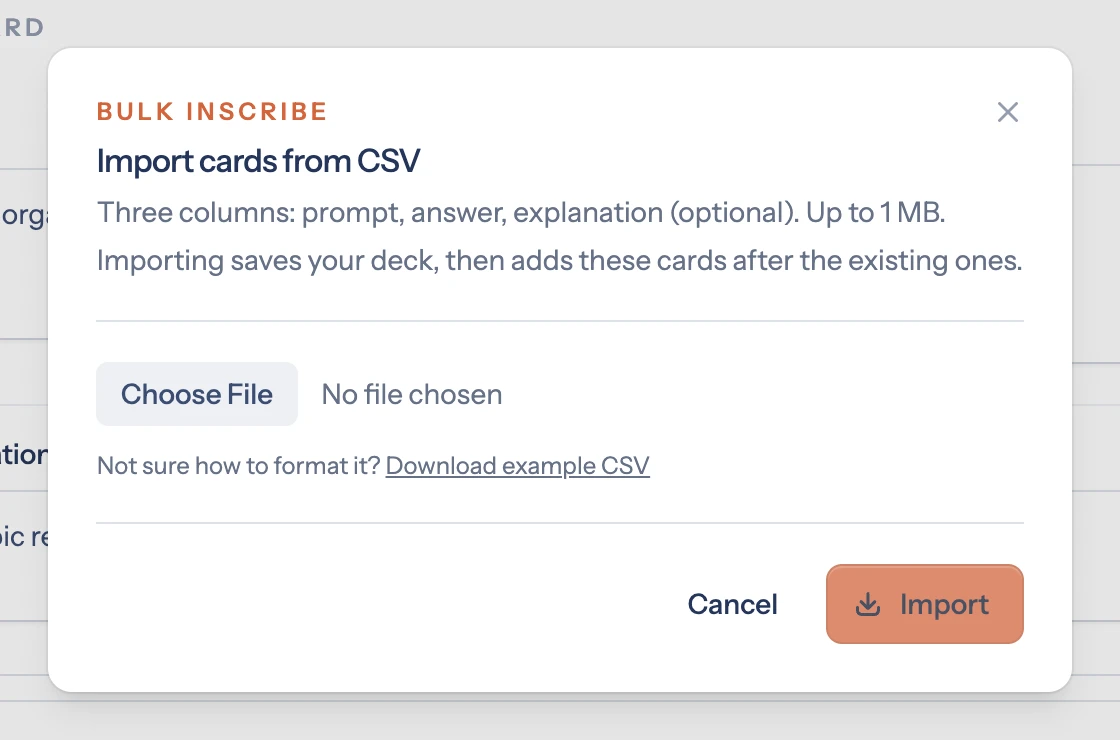
The Import CSV button next to + Add card opens a small modal. Three columns: prompt, answer, explanation. The third is optional. Headers are auto-detected; if your first row starts with prompt, question, term, or front, it'll be skipped as a header.
Saving
The orange Save button in the sticky header is always visible. Saving is not automatic — make a habit of hitting it after a batch of edits.
After saving, a small "Saved." confirmation appears under the Save button for a couple of seconds.
The Preview button
Right next to Settings sits a Preview button that opens the play view in a new tab. Preview always shows what's currently saved in the database, not your unsaved in-page edits. Save first, then preview.