Sections and rosters
Sections and rosters
A Section is Meletema's record of an LMS course that has been linked to a specific deck. Sections are created automatically the first time an instructor deep-links a deck or the first time a student launches.
What a section captures
Every section stores:
- Name — pulled from the LMS context (e.g. "Bio 101 - Section A").
- Linked deck — the deck students play when they launch the assignment.
- LTI platform — the LMS connection it came from.
- LMS identifiers — context_id and resource_link_id, used for matching launches.
- Grade passback toggle — whether final scores sync to the LMS.
- Line item URL (LTI 1.3) or outcome service URL (LTI 1.1) — captured on first student launch.
Viewing sections
From Your org → Sections you'll see a table of every section in the organization with student count, attempt count, and a green / red dot for whether grade passback is wired up.
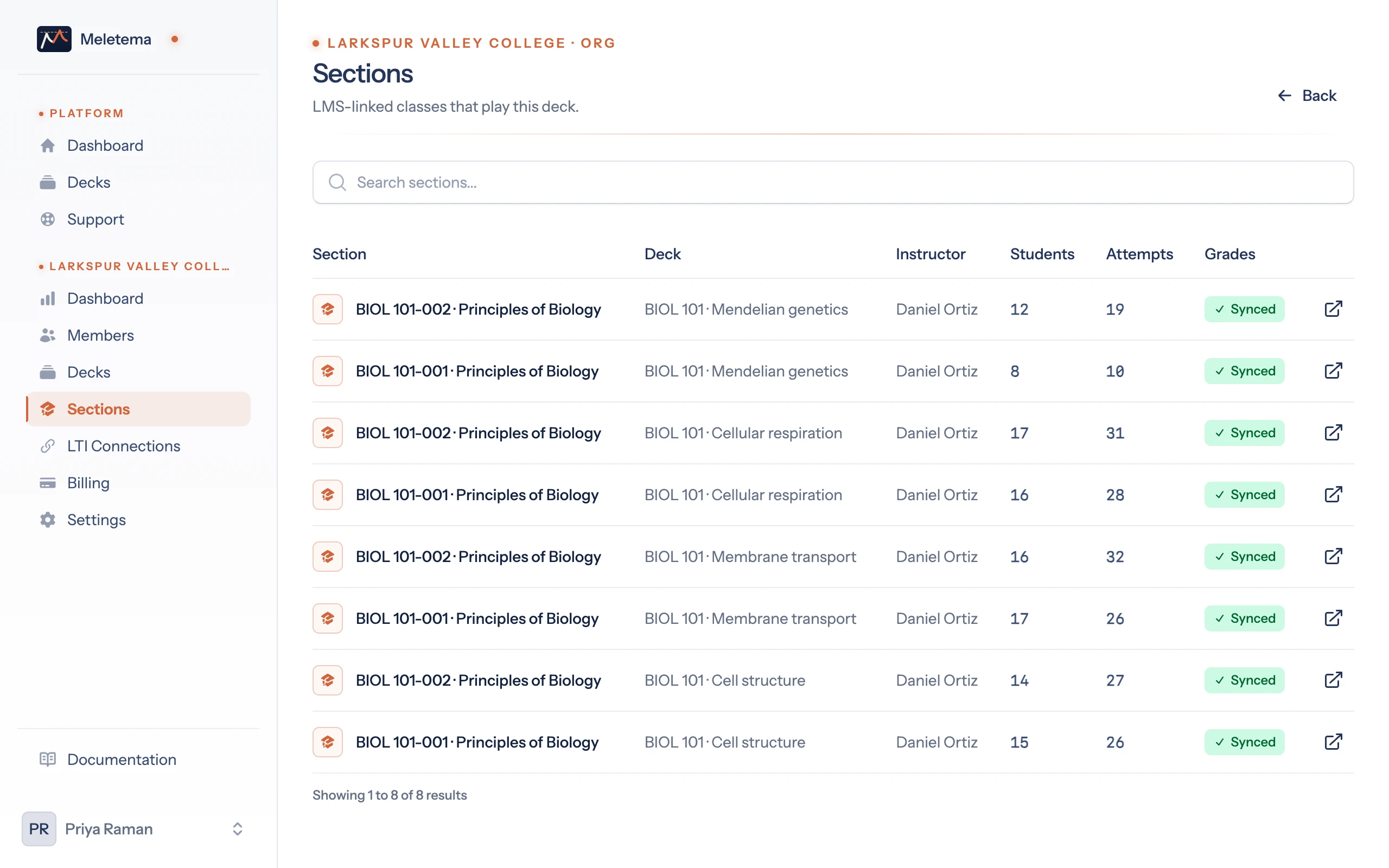
Click any row to drill into the Section detail page:
- The roster of students enrolled
- Each student's attempt count, average score, last activity, enrolled date
- A grade-passback indicator
- The instructor who created the section
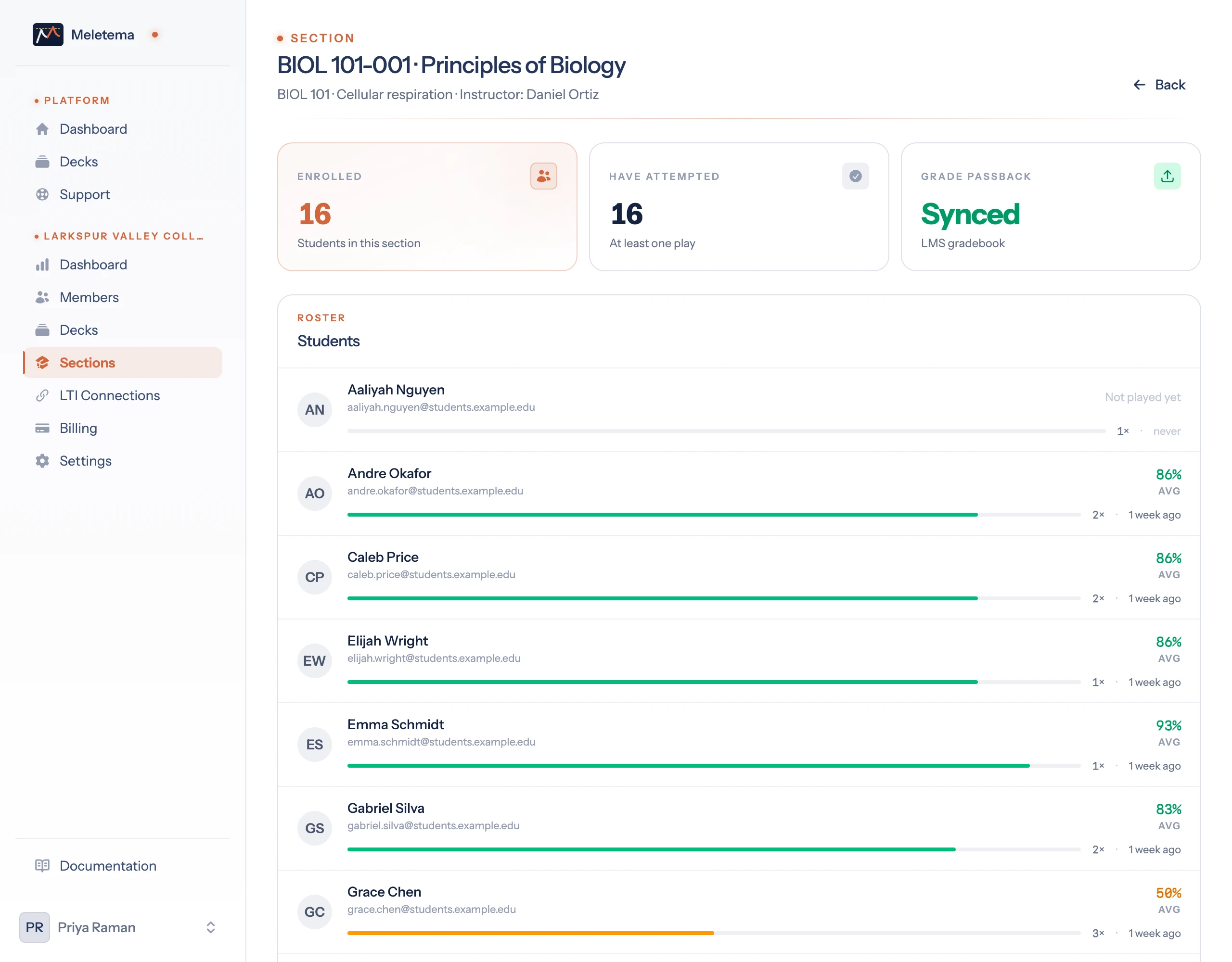
Roster behaviour
Students are added to a section automatically on first launch. Meletema doesn't import the LMS roster ahead of time — it's lazy:
- Student clicks the LMS assignment.
- LMS launches Meletema with the student's identity.
- Meletema creates / matches the user and adds them to the section.
- Student starts playing.
If you've connected an LMS that supports NRPS (Names and Roles), you can also pre-sync the full roster from the LMS — but that's a future feature.
Editing the linked deck
You can't change a section's linked deck from the admin UI — that's intentional. The section is bound to the specific LMS resource_link, so changing it would silently rewire which deck students see.
To replace the deck for an existing assignment, deep-link again from inside the LMS assignment editor. That creates / updates the section to point at the new deck.