Previewing a deck
Previewing a deck
Preview is exactly what your students will see — the play view rendered against the saved version of your deck.
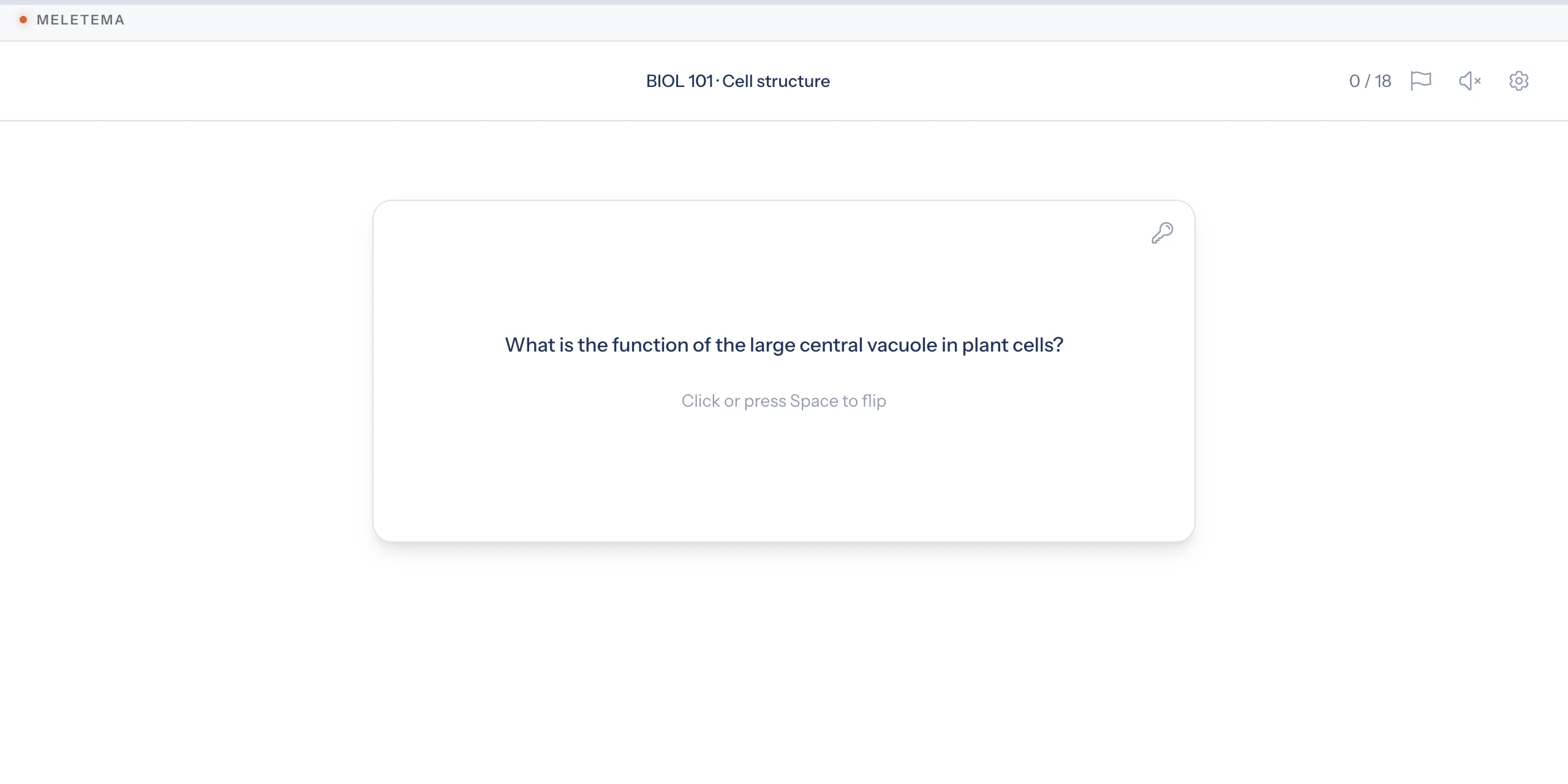
How to open it
Three ways:
- Deck editor — Click the ▶ Preview button in the header. Opens in a new tab.
- Decks index — Use the ⋯ menu on any deck row, then Preview. Also opens in a new tab.
- Deck report — A Preview button in the report's top-right corner.
Whichever path you take, Preview keeps your edit context open so you can quickly hop back to make changes.
What Preview shows
The play view uses whatever's in the database. That means:
- The deck's current saved state — not your unsaved edits.
- The activity types allowed by the deck's settings.
- The card order setting (randomized or sequential).
- All currently-saved cards, in the saved order.
If your latest changes don't appear, you forgot to hit Save.
Disabled state
The Preview button is greyed out when the deck has zero cards — there's nothing to play. Add at least one card and save.
Nothing is saved
A preview is marked with a Preview badge next to the deck title, and it saves nothing: no attempt, no answers, no mastery progress, and no grade. Tap Preview as often as you like while iterating; your "Total attempts" and "Avg score" stats won't move.
Each preview also starts fresh, the way a new student would, rather than from your own past answers.
The same goes for any time you or a colleague play a deck while signed in, from the Decks list, the report, or the organization's deck library. Only plays that start from your LMS are recorded as student attempts.