Sharing a practice link
Sharing a practice link
A practice link lets anyone practice a deck without signing in. Embed the player in a course page, or share the plain link wherever embeds aren't allowed.
Practice links work on every plan, including Free, and don't need an LMS connection.
Creating a link
- Open the deck in the editor.
- Click Share in the header.
- Click Create practice link.
The Share window then shows:
- Link — the public URL, with a copy button.
- Embed code — a ready-made
<iframe>for course pages and websites, also with a copy button. - New link — replaces the link with a new one (see below).
- Turn off — disables the link.

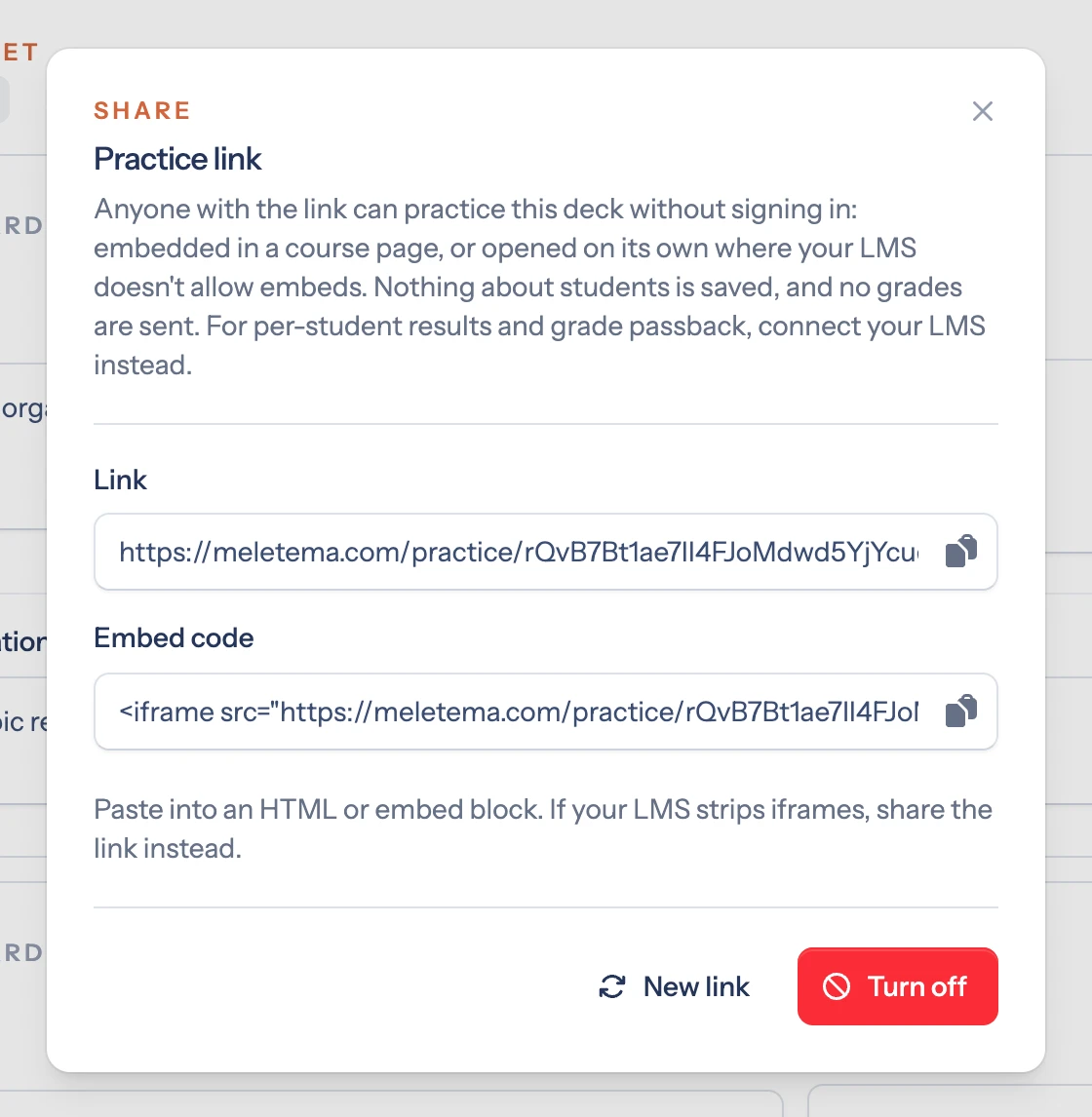
Anyone who can edit the deck (its owner, collaborators, and org admins) can create, replace, or turn off its link.
Sharing the link
Use the plain link anywhere a URL works: an LMS announcement or module item, a Google Classroom post, an email, or a class website. It opens a focused, full-page player without Meletema's menus.
It's also the fallback when your LMS won't accept the embed code.
Embedding the player
Paste the Embed code into any editor that accepts HTML or embeds. The player fills the width of the page and is 720 pixels tall.
- Canvas — Edit a page, switch to the HTML editor, and paste the code where the player should appear.
- Moodle — Add a Page or a Text and media area, switch the editor to its HTML (source) view, and paste. Many Moodle sites strip iframes from teacher content; if the player is missing after you save, share the link instead.
- Blackboard and D2L Brightspace — Paste into the HTML or source view of a content item.
Whether embeds are allowed is up to each school's LMS settings. If they're blocked, use the link.
What students see
The same player they'd get through the LMS: cards to flip, multiple-choice checkpoints, and missed cards that come back later in the session. When they finish, they see their score for that session and can Play Again.
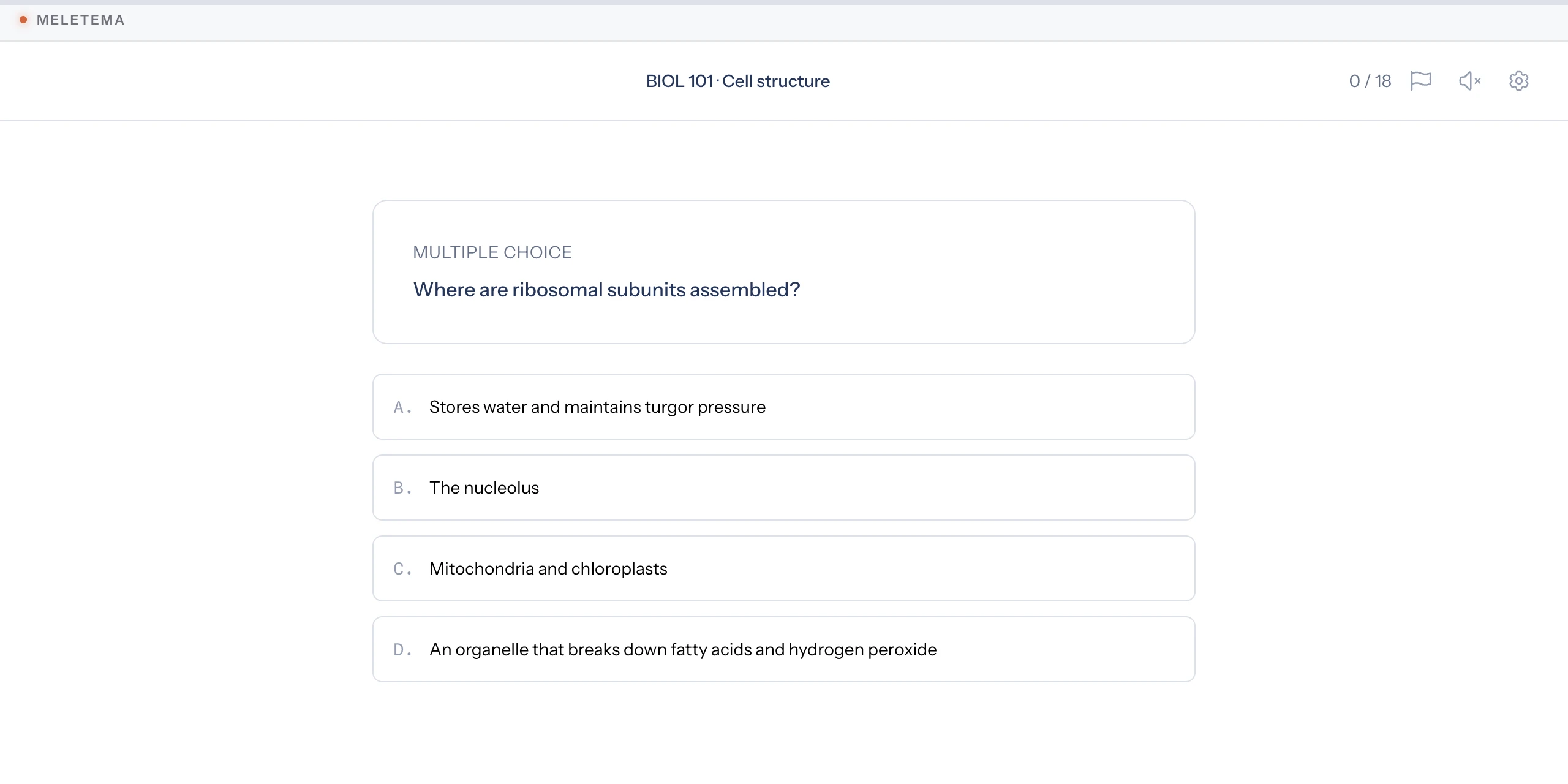
See The student player for a walk through a whole session.
Limitations
Practice links are anonymous on purpose. That keeps them simple and privacy-friendly, but it also means:
- Nothing about students is saved. No names, attempts, or answers are stored.
- Progress lasts only for the visit. Closing the tab or coming back later starts fresh, so spaced repetition across days doesn't apply.
- No per-student results. Practice plays don't appear in the deck report or on the dashboard.
- No grades. Scores never reach the LMS gradebook.
- Anyone with the link can play. Share it only where you'd share the deck's content.
- Embeds depend on your LMS. Some LMSes, Moodle most often, remove iframes from teacher-written content.
For per-student results and grade passback, connect your LMS instead. See Connecting your LMS and Grade passback.
Replacing or turning off a link
- New link creates a fresh URL. The old link and every embed using it stop working immediately.
- Turn off disables the link, so every copy stops working.
Either way, students who open an old link, or click Next mid-session, see a Practice Link Unavailable page asking them to get the current link from you. After replacing a link, update anywhere you posted the old one.
Turning a link back on creates a new URL; it doesn't restore the old one.