Connecting your LMS
Connecting your LMS
Meletema supports both LTI 1.3 (modern, OAuth 2.0 + JWT) and LTI 1.1 (legacy, OAuth 1.0a). Your LMS will support at least one.
Who does this? Connecting an LMS is an organization admin action, not an instructor one. If you're not an admin on your org, ping someone who is.
LTI 1.3 (recommended)
LTI 1.3 supports dynamic registration — a single URL that, when pasted into your LMS, sets up the whole connection.
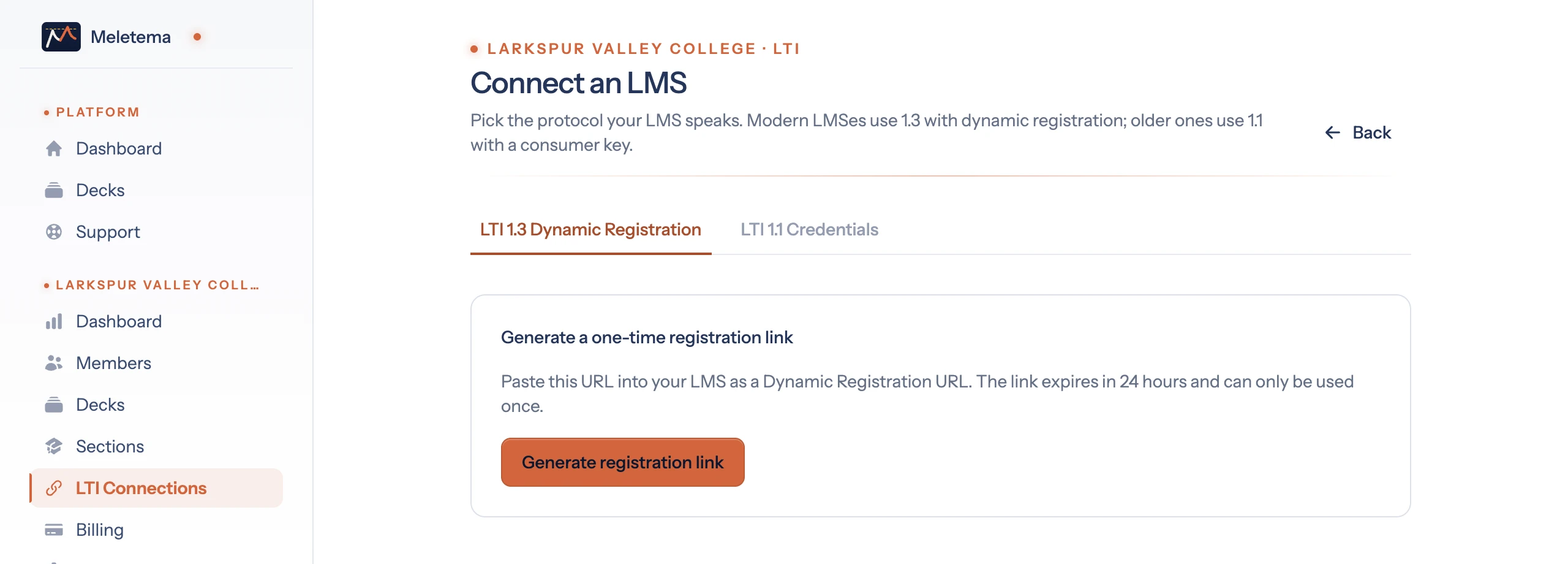
- Go to Your org → LTI Connections → Connect an LMS.
- On the LTI 1.3 Dynamic Registration tab, click Generate registration link.
- Copy the URL Meletema gives you. It looks like:
https://meletema.app/lti/register/7c4a8d09ca3762af61e59520... - In your LMS's developer-keys or app-registration UI, paste it as the dynamic registration URL and follow the LMS's prompts.
- Meletema will show "LMS connected" once the LMS pings back.
The URL is single-use and expires in 24 hours. Don't worry if you regenerate it — old ones become invalid automatically.
LTI 1.1 (for older LMSes)
LTI 1.1 uses a consumer key and shared secret instead of dynamic registration.
-
Go to Your org → LTI Connections → Connect an LMS.
-
On the LTI 1.1 Credentials tab, give the connection a display name (e.g. "Canvas — Bio 101") and click Generate credentials.
-
Meletema shows three values once — copy them all:
- Launch URL:
https://meletema.app/lti/launch - Consumer Key: a random 40-character string
- Shared Secret: a random 64-character string
- Launch URL:
-
In your LMS, create a new "External Tool" / "LTI 1.1 App" and paste the three values.
-
Set the launch container to "New window" (or "New tab"). This is important — LTI 1.1's iframe behavior is inconsistent across LMS versions (iframe height issues, content-item selection quirks), and launching in a new window sidesteps every one of them. LTI 1.3 doesn't have this restriction and is fine to embed.
- Moodle: Site administration → Plugins → External tool → edit tool → Default launch container → "New window".
- Canvas: Settings → Apps → edit app → Launch container → "New window".
- Blackboard: Tool settings → Open in → "New window".
If you lose the secret you'll need to delete the connection and generate a new one — there's no rotate-secret action.
After connecting
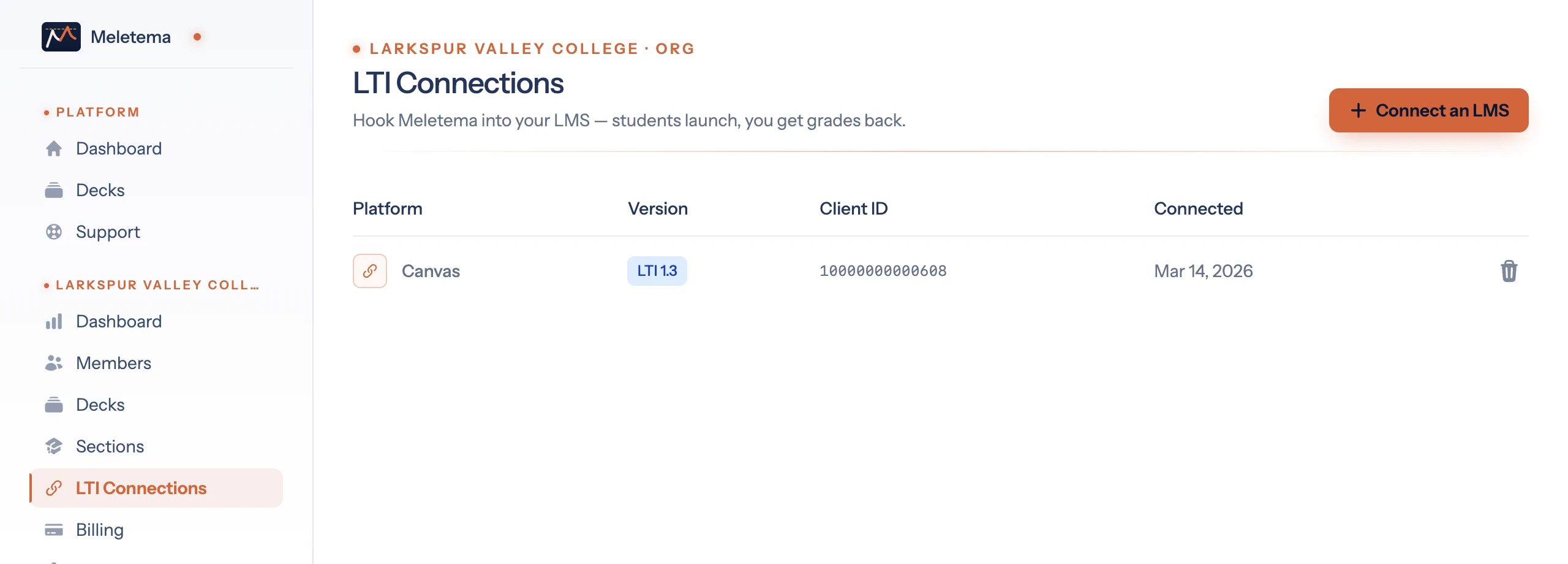
Once an LMS is connected, any instructor in your organization can:
- Deep-link a deck into an LMS assignment (see Deep linking).
- Have students launch into Meletema with their identity automatically provisioned.
- Get grade passback on completed attempts (see Grade passback).
No per-instructor configuration needed.