Managing members
Managing members
An organization is a group of people who share a deck library, LMS connection, and subscription. As an admin, you control who's in it.
Roles
Two roles inside an organization:
- Admin — Can manage billing, LMS connections, members, and everything below.
- Instructor — Can create and edit decks, link decks to LMS assignments, see section dashboards. Cannot change billing or invite people.
There's no "student" role inside the org. Students are tracked separately, per LMS section, and don't have org membership.
Inviting
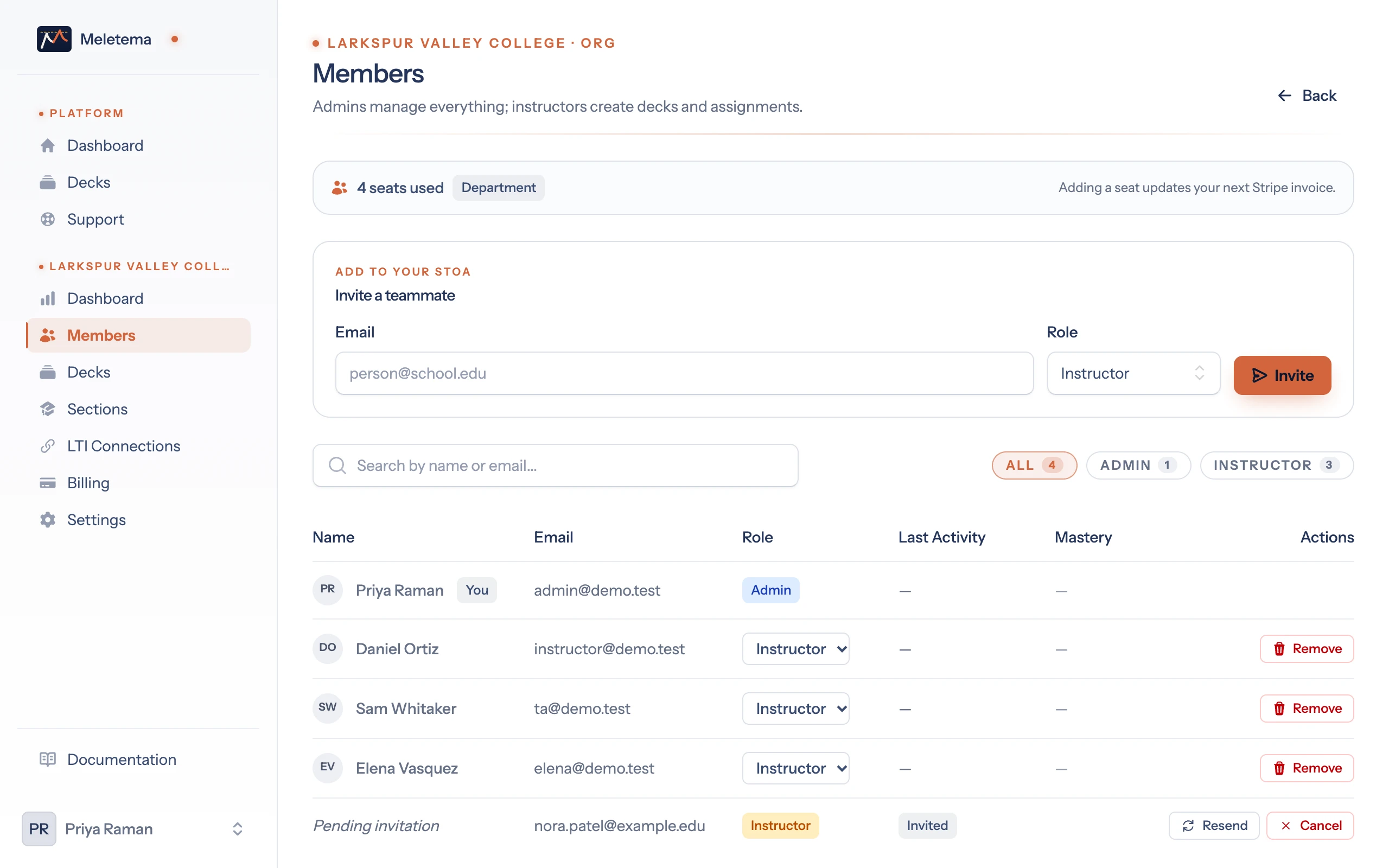
From Your org → Members, use the Invite a teammate form at the top:
- Enter the new member's email.
- Pick their role.
- Click Invite.
What happens next depends on whether the email is already registered in Meletema:
- Already registered — They're added to the org immediately and get a "you've been added to Org name" email.
- Not registered yet — Meletema creates a
pending_invitationrecord and emails them a signup link. The link expires after 7 days. When they sign up via the link, they're added to the org with the role you chose.
You can see pending invites at the bottom of the Members table, with Resend and Cancel buttons.
Changing roles
In the Members table, pick Admin or Instructor from the member's Role dropdown; the change saves right away. You can't downgrade yourself — there has to be at least one admin in the org at all times.
Removing
Click Remove on the member's row. Removing a member doesn't delete decks they created — their decks stay in the organization, and any that were shared remain in the shared library. As an org admin you can still open, edit, or delete them.
What members see
When a member belongs to your org, they get a sidebar group with the org's name in the in-app left rail, plus dashboard widgets scoped to org content.