The student player
The student player
The player is where students practice. It looks the same whether they open a deck from your LMS, from a practice link, or you open it with Preview. Inside an LMS or on a practice link it fills the page with nothing but the deck.
Flashcards
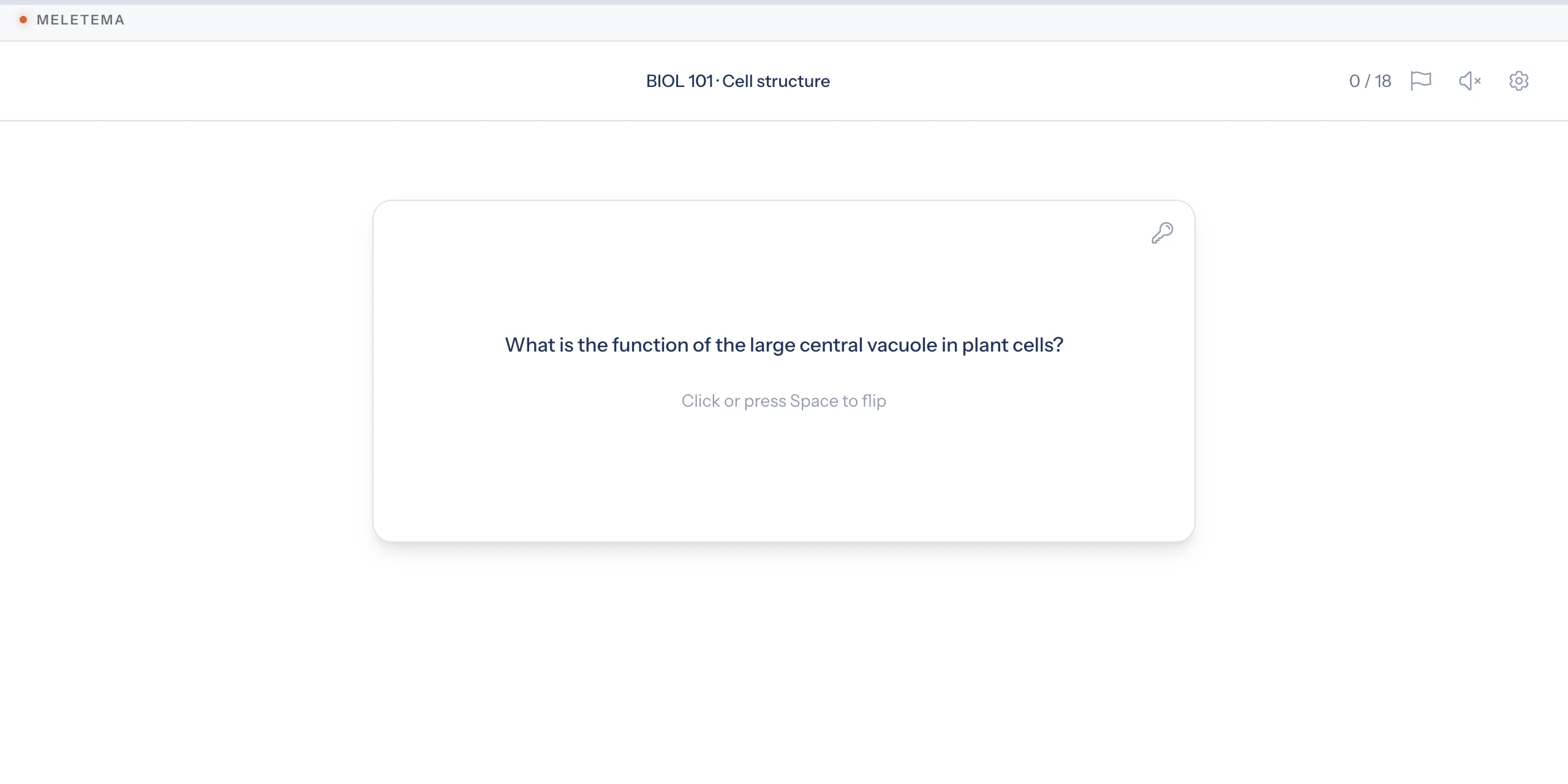
Each card starts on its prompt. Students click the card, or press Space, to flip it.
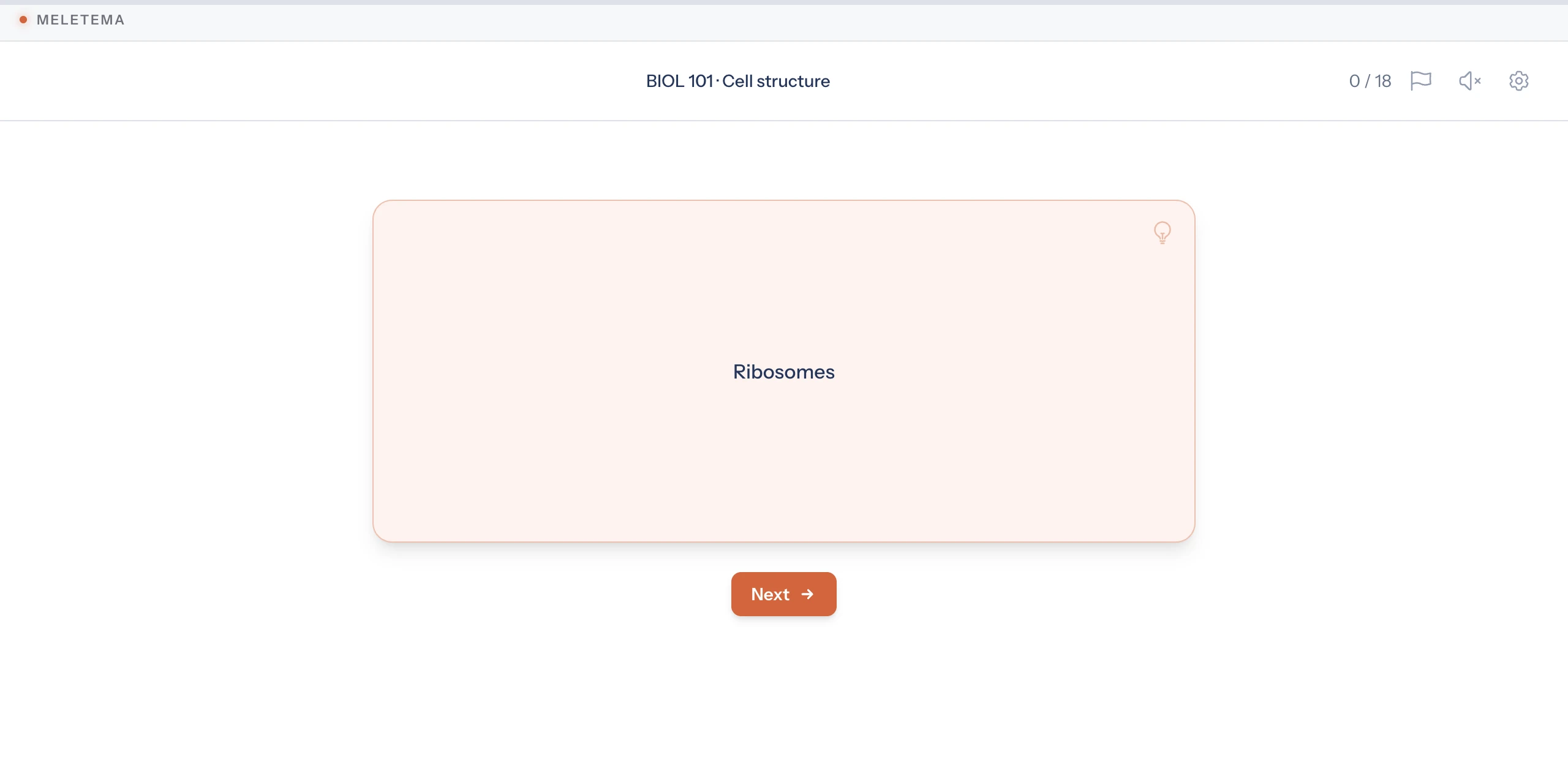
The back shows the answer and, if the card has one, its explanation. Next (or Enter / →) moves on.
The counter in the header, such as 12 / 18, is how many of the deck's cards the student has mastered this session.
Checkpoints
After every few flashcards, a multiple-choice checkpoint asks about one of the cards just studied. Students click an option or press A–D.
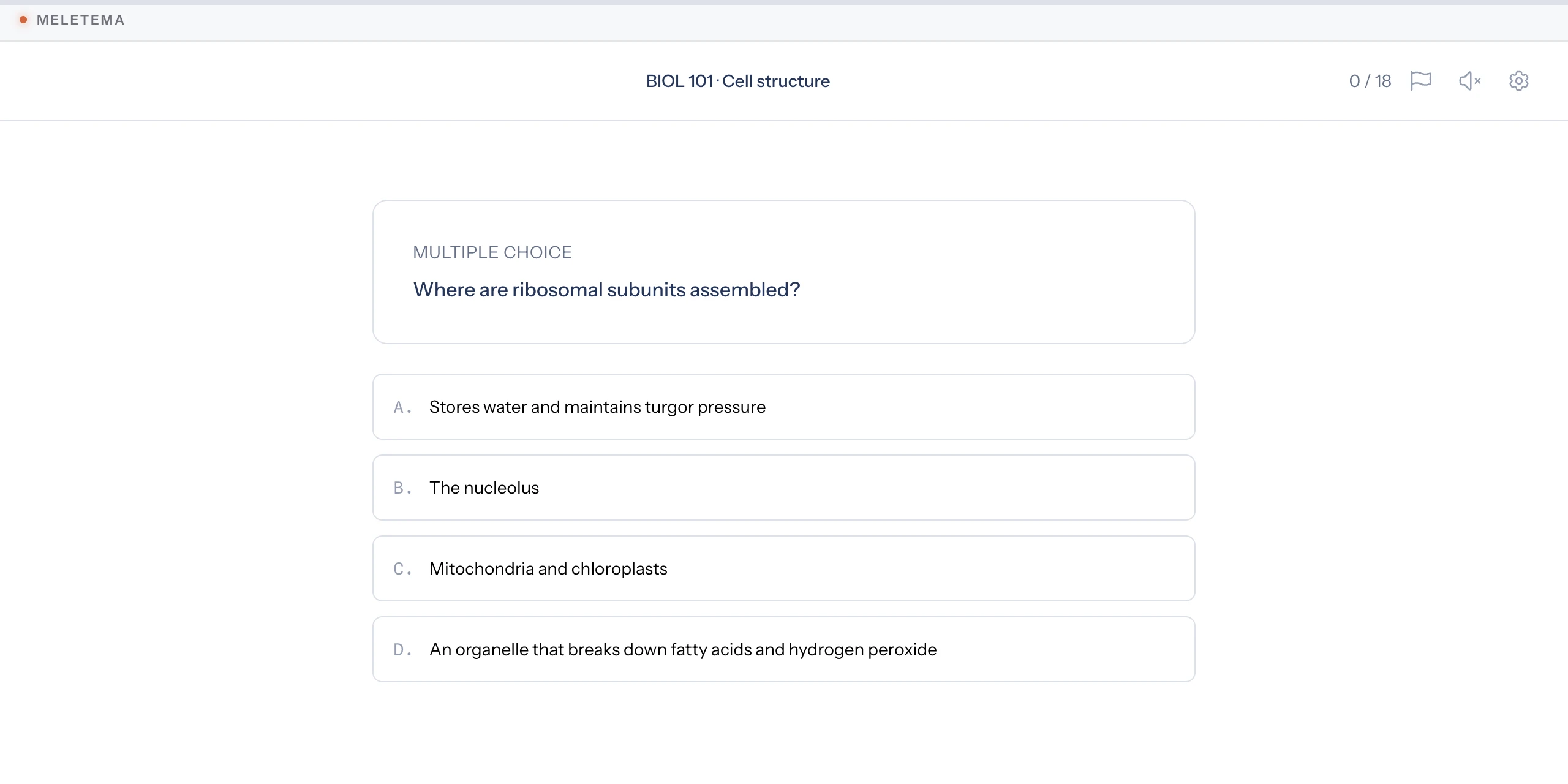
The right answer turns green. A wrong pick turns red and shows the card's explanation, and that card comes back later in the session.
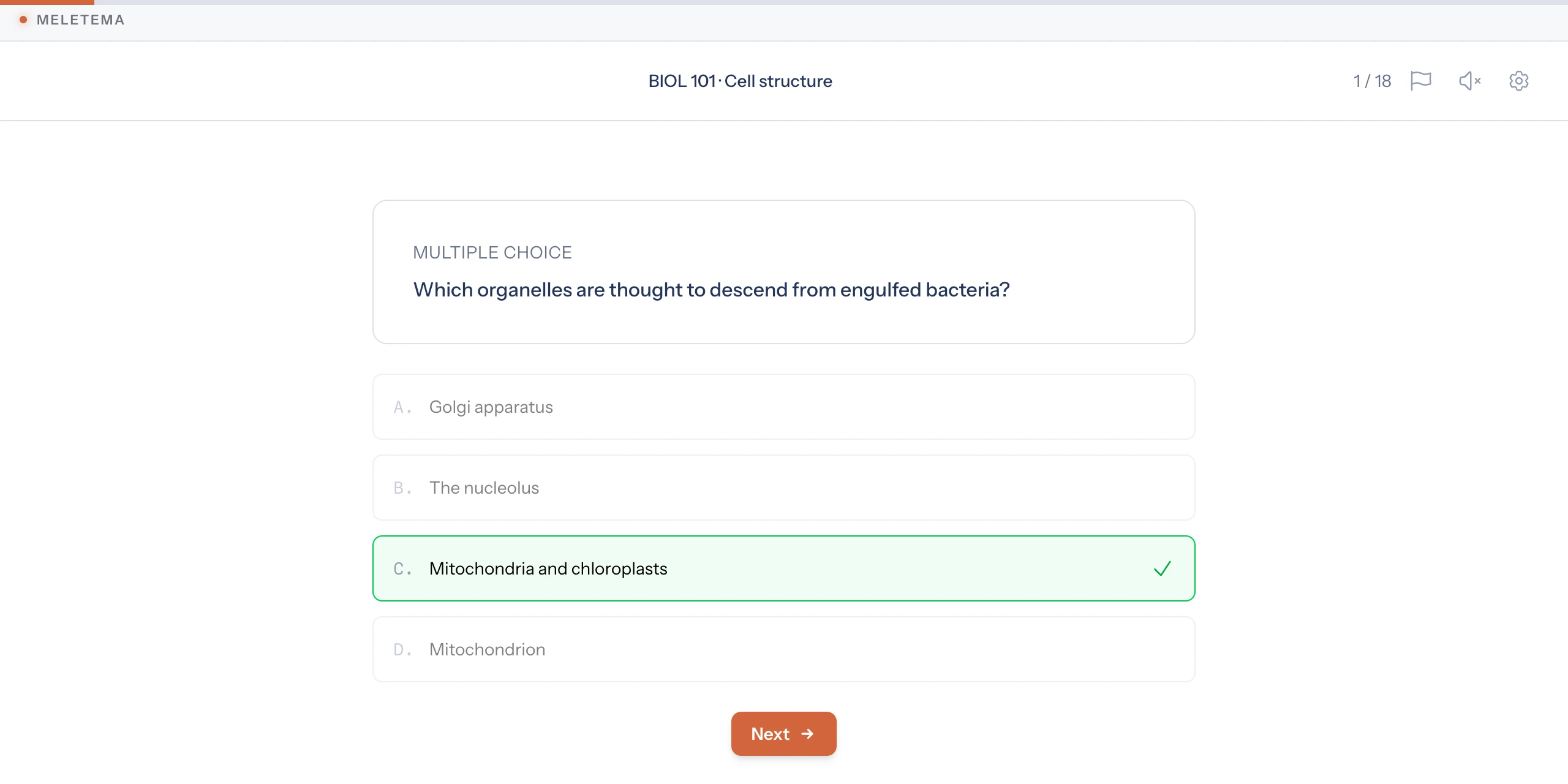
Checkpoints are what score the session. How that score is worked out depends on the deck's scoring mode; see Grade passback.
Finishing
The session ends when every card is mastered. Students can also end it early with the flag button in the header (Finish for now), which keeps the score they've earned. If the deck has Max misses per card set, a card missed that many times is set aside so the session can still finish.
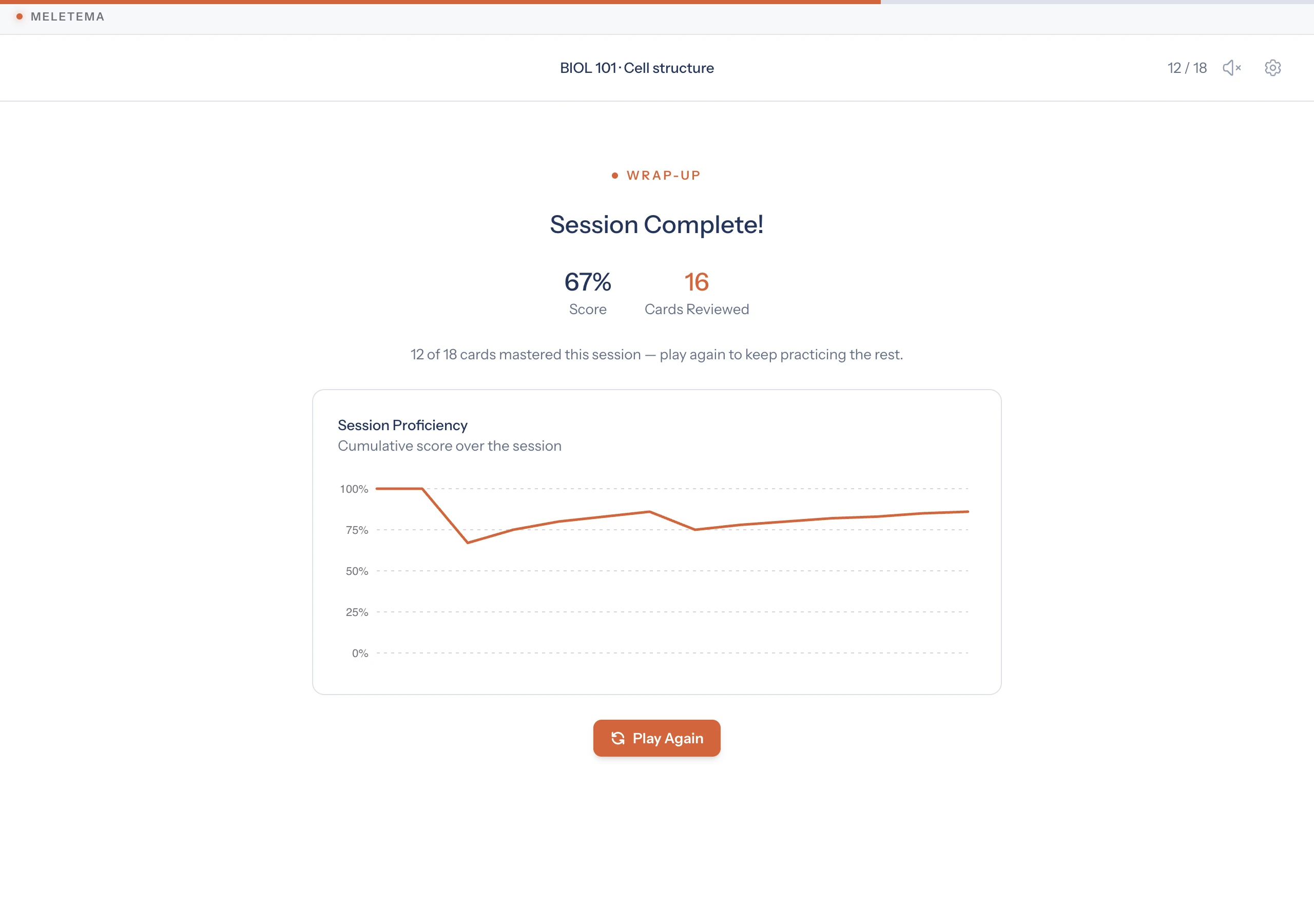
The wrap-up screen shows the score, how many cards were reviewed, and a Session Proficiency chart of the running score. Play Again starts a fresh session.
Player settings
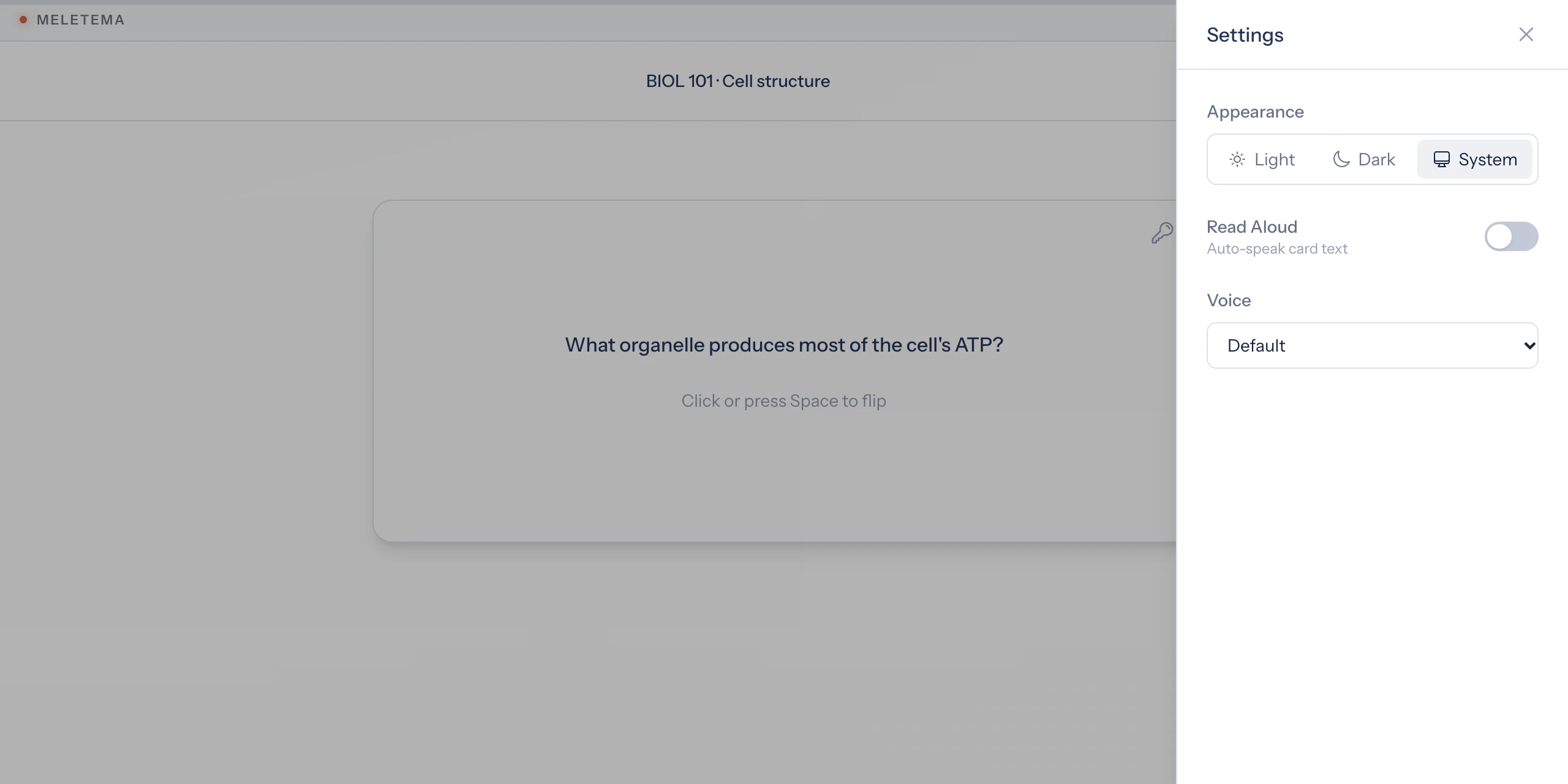
The gear button in the header opens the player's settings. They're saved in the student's browser, so they carry over to every deck.
- Appearance — Light, Dark, or System (follow the device).
- Read Aloud — speaks each prompt, and then the answer when the card flips. The speaker button in the header turns it on and off too.
- Voice — which of the device's voices reads aloud. The list depends on the browser and operating system.
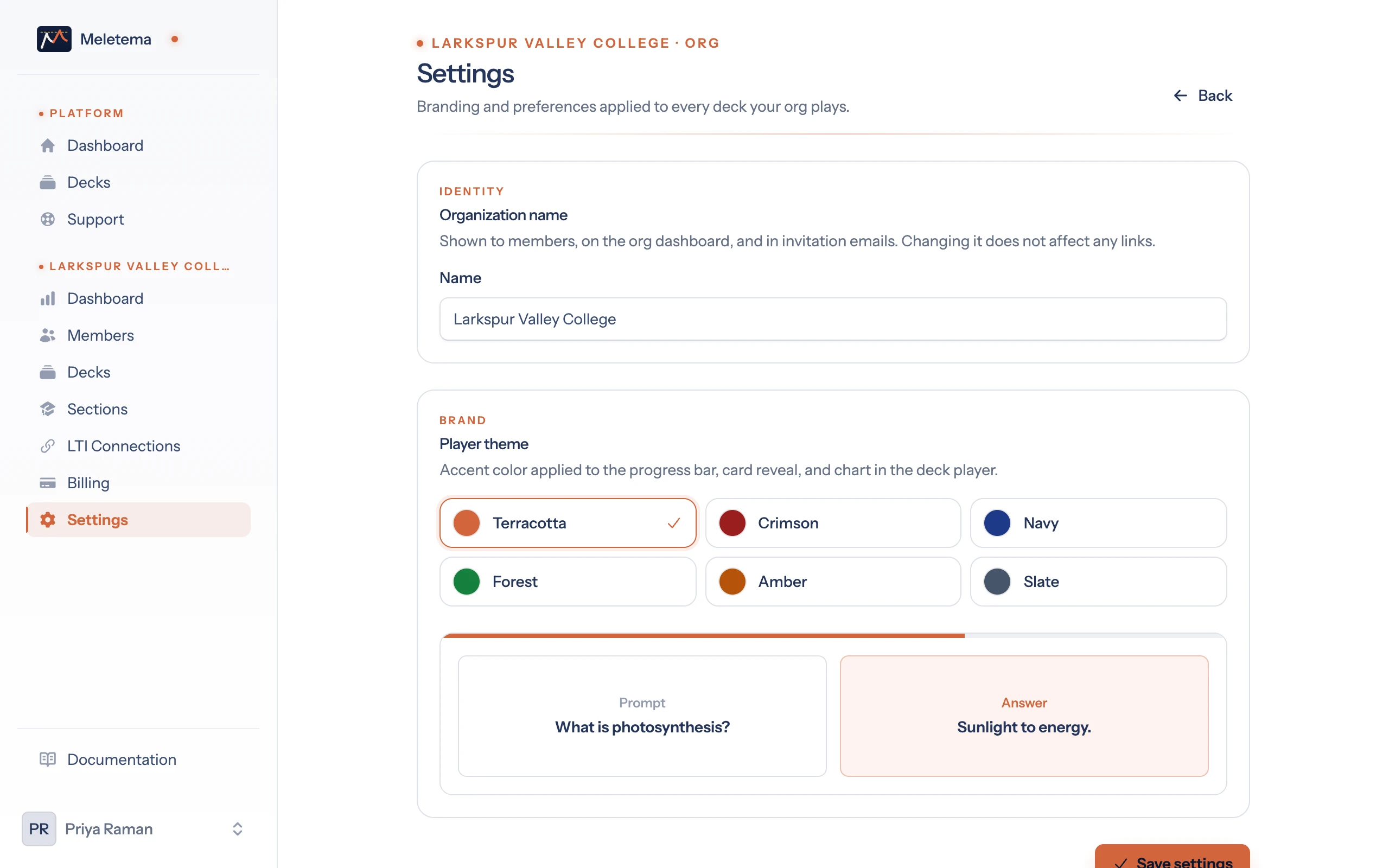
Your organization's color
The accent color on the progress bar, the flipped cards, and the wrap-up chart comes from your organization. Org admins choose it under Your org → Settings → Player theme; the change applies to every deck the organization plays.